Create an email account
Before you start
Section titled “Before you start”- A domain added to your account (Add a domain covers that).
- Decide what local part you want — the bit before the
@. For example,janeto getjane@example.com. - About 5 minutes.
Sign in to WHP
Section titled “Sign in to WHP”You can sign in to WHP two ways:
- Through your client portal (recommended). Go to https://secure.anhonesthost.com, sign in to your account, open Services → My Services, click your hosting plan, then click Login to WHP. No extra password to remember.
- Directly with your WHP credentials. Visit
https://<your-server-hostname>:8443and sign in with the WHP username and password you set up. Your server hostname is in your welcome email and on the service page in the client portal.
-
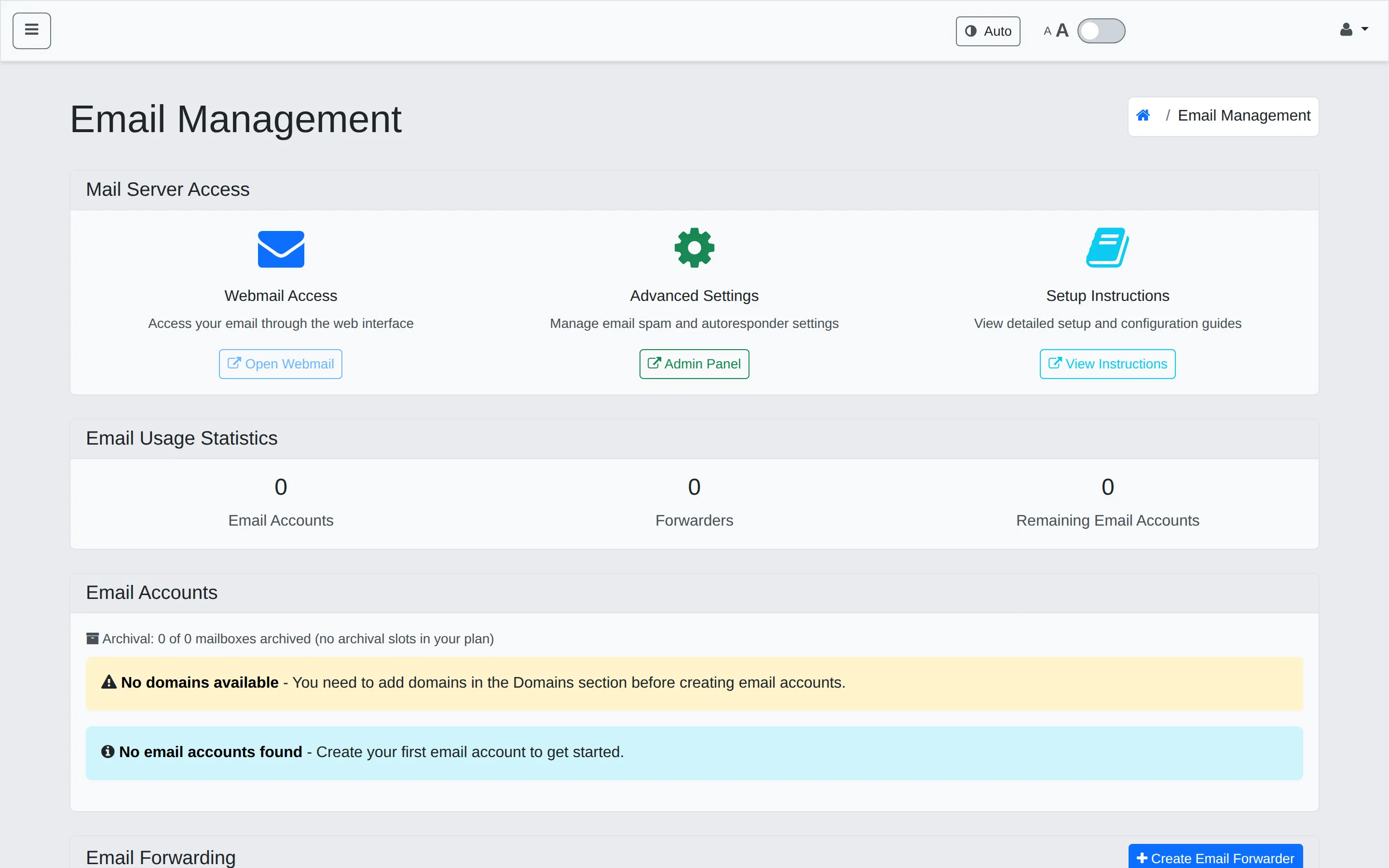
In the sidebar, click Email.
-
Scroll to Email Accounts and use the form to create a new account on one of your domains. You’ll be asked for the domain, the local part, a password, and an optional mailbox size cap.
-
Set a strong password — at least 12 characters with a mix of upper case, lower case, numbers, and symbols. Email accounts are common attack targets.
-
Click Create. The new account appears in the Email Accounts list.
Set up your email client
Section titled “Set up your email client”The exact IMAP, POP3, and SMTP hostnames are listed on the Email page — click Setup Instructions → View Instructions under Mail Server Access for a step-by-step that includes the right hostnames, ports, and security settings for your server.
The typical settings look like this; substitute the hostname shown in the Setup Instructions:
IMAP (incoming)  Host:     <see Setup Instructions>  Port:     993  Security: SSL/TLS  Username: full email address (e.g., jane@example.com)  Password: the one you set above
SMTP (outgoing)  Host:     <see Setup Instructions>  Port:     587  Security: STARTTLS  Username: full email address  Password: same as IMAP
For per-client walkthroughs (Outlook, Apple Mail, Thunderbird, etc.), see the Email clients section — coming soon.
Webmail
Section titled “Webmail”Click Webmail Access → Open Webmail on the Email page to sign in to webmail in a new tab.
Verify it worked
Section titled “Verify it worked”Send yourself a test message from another account (your personal Gmail, for example). It should arrive within a minute or two and be retrievable from both your client and webmail.
Troubleshooting
Section titled “Troubleshooting”Webmail isn’t reachable. DNS for the mail subdomain may still be propagating — wait an hour and try again.
Outgoing mail is bouncing or going to spam. Check the SPF and DKIM records. The DKIM Records panel on the Email page shows whether DKIM is configured for each of your domains.
Client can connect on IMAP but not SMTP. Some ISPs and corporate networks block outgoing port 587. Try sending from a different network to confirm; if the issue is your network, your ISP is the place to ask.
Related
Section titled “Related”Still stuck?
Section titled “Still stuck?”Still stuck? Open a support ticket and our team will help.