Backups
WHP keeps automatic backups of your sites and databases. The Backup Management page lets you trigger an on-demand backup, add a scheduled backup, manage where backups are sent, and review history.
What’s backed up
Section titled “What’s backed up”- Sites — files for each site.
- Databases — every MySQL and PostgreSQL database attached to your account.
Default retention on built-in backup targets is 5 days, up to 10 backups.
Sign in to WHP
Section titled “Sign in to WHP”You can sign in to WHP two ways:
- Through your client portal (recommended). Go to https://secure.anhonesthost.com, sign in to your account, open Services → My Services, click your hosting plan, then click Login to WHP. No extra password to remember.
- Directly with your WHP credentials. Visit
https://<your-server-hostname>:8443and sign in with the WHP username and password you set up. Your server hostname is in your welcome email and on the service page in the client portal.
Run an on-demand backup
Section titled “Run an on-demand backup”-
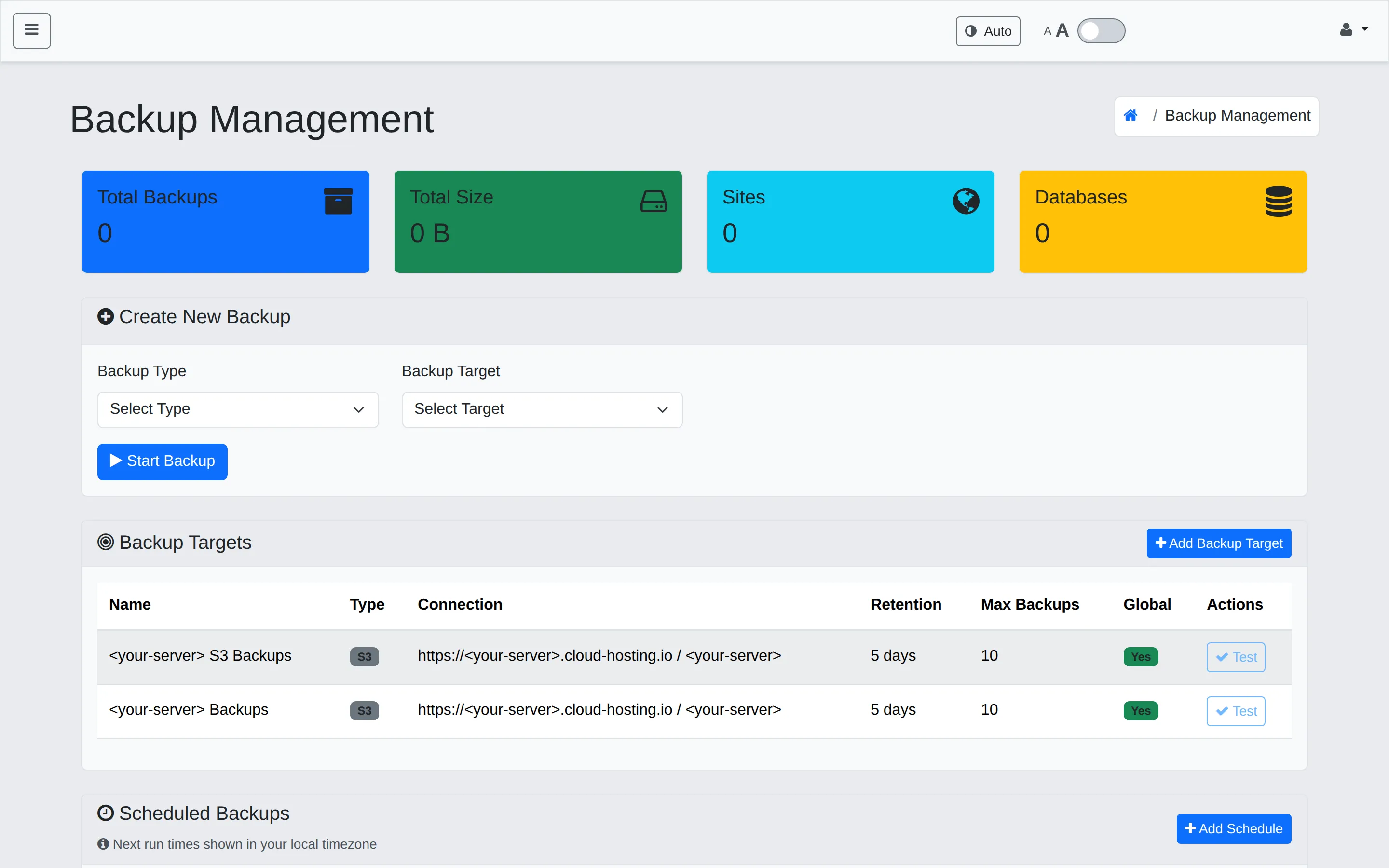
In the sidebar, click Backups.
-
Under Create New Backup, pick a Backup Type (Sites, Databases, or both) and a Backup Target from the dropdown.
-
Click Start Backup. The run appears in Backup History below; status updates live.
Schedule a backup
Section titled “Schedule a backup”-
Scroll down to Scheduled Backups and click + Add Schedule.
-
Pick the cadence (daily, weekly, etc.), the type (sites / databases / both), and the target.
-
Save. The schedule appears in the list and runs automatically.
Where backups are stored
Section titled “Where backups are stored”The Backup Targets table shows the destinations available to your account. Built-in targets are S3-backed (for example, WHP01 S3 Backups) with retention and a maximum backup count. Global targets are managed by us; you can also add your own external target (for example, your own S3 bucket) with + Add Backup Target.
Verify backups are succeeding
Section titled “Verify backups are succeeding”-
Open Backups.
-
Look at the Total Backups and Total Size tiles at the top. If Total Backups stays at 0 over time, no backups are running — open a support ticket.
-
Check Backup History for recent entries. Each should show Success within minutes of its scheduled time.
Test a restore (recommended quarterly)
Section titled “Test a restore (recommended quarterly)”Find the time to do this before you actually need it. Open a recent backup in Backup History → preview the contents → restore a single file (your site’s index.php is a fine target) → confirm it appears. If the surgical restore works, the pipeline works.
Don’t do a full restore unless you genuinely need to — it rewrites your live site.
Troubleshooting
Section titled “Troubleshooting”Backup failed. Click the failed row to see the error. Common causes:
- Disk full or close to it — check Overview → Resource usage and consider a resource upgrade.
- A very large mailbox slowed the run — consider the archival email add-on to relieve mailbox pressure.
- Transient lock or maintenance window — let it retry on the next schedule before opening a ticket.
“No targets available” when starting a backup. Your account has no backup targets attached. Open a ticket; we’ll get one wired up.
Related
Section titled “Related”Still stuck?
Section titled “Still stuck?”Still stuck? Open a support ticket and our team will help.