Create a site
Every site on WHP runs in one or more containers. The Sites page lets you pick a container type (PHP, Node, static HTML, or one of the other options on the dropdown), bind one or more domains, and set how much CPU and RAM each container gets.
Before you start
Section titled “Before you start”- A domain already added to your account (Add a domain covers that).
- Decide what kind of site you’re building. Common container types: PHP (WordPress, Laravel, most CMSes), Node (custom apps), Static HTML (prebuilt bundles from Astro, Hugo, Eleventy, etc.).
- About 5 minutes.
Sign in to WHP
Section titled “Sign in to WHP”You can sign in to WHP two ways:
- Through your client portal (recommended). Go to https://secure.anhonesthost.com, sign in to your account, open Services → My Services, click your hosting plan, then click Login to WHP. No extra password to remember.
- Directly with your WHP credentials. Visit
https://<your-server-hostname>:8443and sign in with the WHP username and password you set up. Your server hostname is in your welcome email and on the service page in the client portal.
-
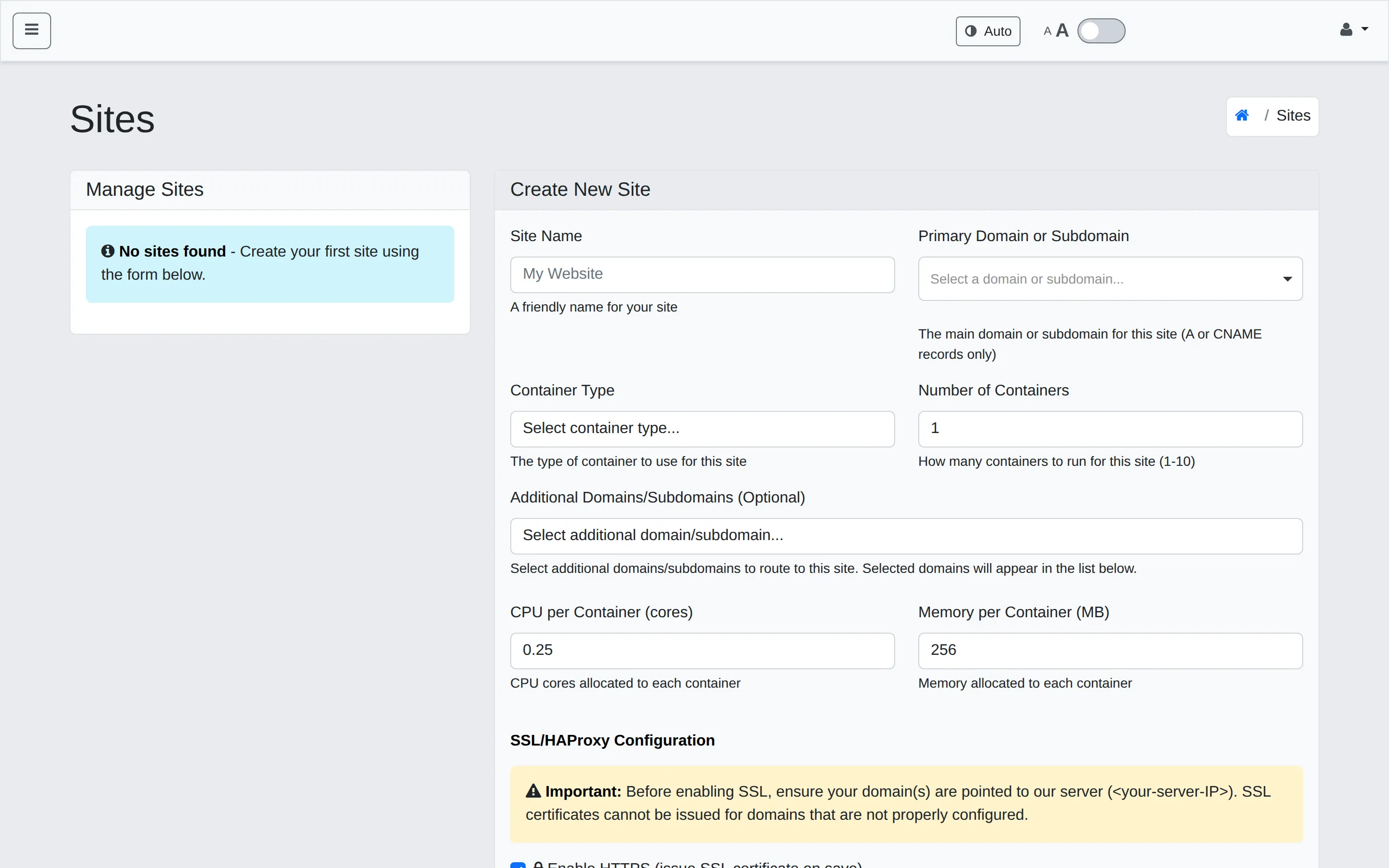
In the sidebar, click Sites.
-
Fill in the Create New Site form on the right:
- Site Name — a friendly label for you to recognise the site later.
- Primary Domain or Subdomain — pick from the dropdown of domains you’ve already added.
- Container Type — PHP, Node, static HTML, etc.
- Number of Containers —
1is the right answer for most sites. Bump this up (1–10) if you need to scale a busy site horizontally; WHP load-balances traffic across the replicas. - Additional Domains/Subdomains (Optional) — bind extra domains to the same site if you want them to serve the same content.
- CPU per Container (cores) — defaults to
0.25. Raise this only if you need to. - Memory per Container (MB) — defaults to
256. Raise this if your app needs more RAM.
-
Scroll down to SSL/HAProxy Configuration. Before you enable HTTPS, make sure your domain’s DNS already points to our server’s IP — SSL certificates can’t be issued for domains that aren’t pointed correctly. Then check Enable HTTPS to have us request a Let’s Encrypt certificate.
-
Click Create Site. WHP provisions the container(s) — usually under a minute. The new site shows up in the Manage Sites list on the left of the page.
Where your files go
Section titled “Where your files go”When you connect via SFTP, your account home (/docker/users/<your-user>/) shows one folder per domain. Inside each domain folder, the layout depends on the container type:
| Container type | Layout inside the domain folder | Docroot is… |
|---|---|---|
| PHP | public_html/, logs/, crontab | public_html/ |
| Node | app/, logs/ | Whatever your start command serves; we run it from app/ |
| Static HTML | files directly (e.g., index.html, assets/) | The domain folder itself |
Upload your files to the right place and the site picks them up immediately.
Connect to databases and caches
Section titled “Connect to databases and caches”Some applications need to connect to databases or caches. Use these hostnames from inside your site — they only resolve within your hosting container, so they don’t work from your laptop.
| Service | Hostname | Default port | Notes |
|---|---|---|---|
| MySQL | mysql | 3306 | Username, password, and database from the MySQL Management page. |
| PostgreSQL | postgres | 5432 | Username, password, and database from the PostgreSQL page. |
| Valkey | valkey | 6379 | Redis wire-compatible (phpredis, Predis, ioredis work unchanged). No password — the connection is network-isolated to your account. Enable on the Valkey Cache page first. |
For email, the mail server hostname is a per-server value (e.g. mail01.cloud-hosting.io) and is shown on the Dashboard page under Server Information.
Connecting from your laptop? Use the panel’s phpMyAdmin (MySQL) or Adminer (PostgreSQL) for ad-hoc queries — direct external connections to these internal services are not exposed for security reasons.
Verify it worked
Section titled “Verify it worked”Open your domain in a browser. You should see your site, or the default “no content yet” placeholder if you haven’t uploaded files. For Node sites, give it 15–30 seconds after creation for the process to start.
Troubleshooting
Section titled “Troubleshooting”You see a default “no content” page. Upload your files via SFTP — for PHP into public_html/, for Node into app/, for static directly into the domain folder.
Node site returns 502. Check that your start command runs successfully locally, and that it binds to the port WHP exposes via env var to your container.
PHP site shows a blank page or 500. Check Sites → your site → Logs (or the logs/ folder in SFTP). Common cause: a syntax error in index.php or a missing PHP extension — open a support ticket if you need a non-default extension enabled.
SSL won’t issue. The “Important: ensure your domain is pointed to our server” warning means DNS hasn’t propagated yet, or it’s pointed somewhere else. Re-check with dig and retry.
Related
Section titled “Related”Still stuck?
Section titled “Still stuck?”Still stuck? Open a support ticket and our team will help.